Article
1. Basic interface
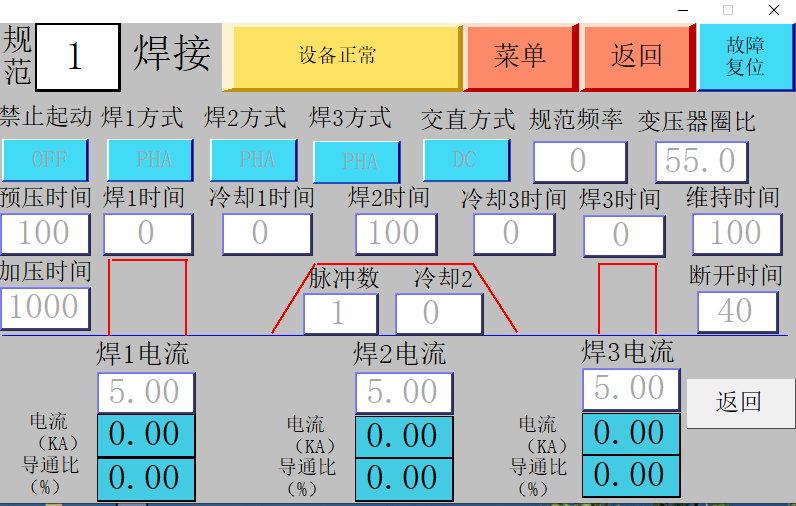
Welding specification timing settingPage:
Welding parameter setting page: basic welding parameter setting
Generally we only need to set 1) Specification number 2) Welding current 3) Welding time and other defaults are fine.
2. User permission settings
1) After the touch screen is turned on, the system is in the "no user" state. In this state, the user can only enter the "main page", "monitoring page" and "help page". When clicking on other pages, the screen will pop up as shown below.
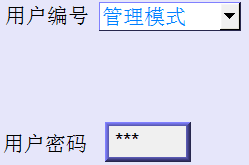
2) If you need to change permissions, first enter the "Password Settings" page, select the user mode in the "User Number" field, and then enter the password of the corresponding user in the "User Password" field. User mode can be "Use, Edit, management"Three modes, the corresponding initial passwords are respectively"111, 222, 333". For example, select the usage mode at "User ID" and enter the password for "Usage Mode" at "User Password", so that the system is in "Usage Mode", as shown in Figure 1. If the password is entered incorrectly, a prompt message will appear, as shown in Figure 2.
3) When the system is in "use mode", you can only view all pages and cannot modify parameters.
The system is inIn the "Edit Mode" state, you can view all pages and modify all parameters.
The system is inIn the "Management Mode" state, you can view all pages, modify all parameters, and modify all passwords.
3、Password change
1). First select the management mode and then enter the password of the corresponding user, as shown in the figure below.
2). Screen pop-up"Change Password" button, as shown below.
3). For example, to change the password of the usage mode, enter the 1~8 digit password in the corresponding position, as shown in the figure below.
4). Then click the "Change Password" button to complete the password change. As shown below.
4、User logout
I. ClickAfter pressing the "Logout user" button, the system is in a userless state.
5、Parameter changes
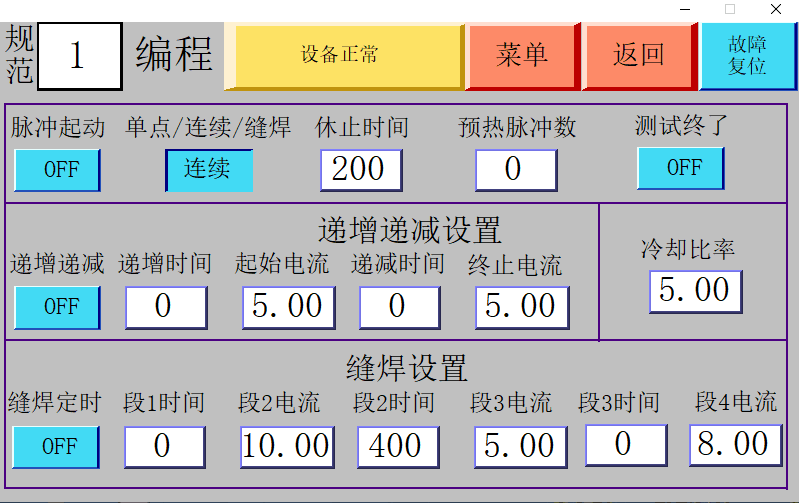
All parameters can only be changed in the programming state. If the change fails, the "Writing Failure" screen will pop up; the parameters have root parameters and sub-parameters; when the root parameter is 0, the sub-parameters cannot be operated and the sub-parameters are in gray font.
6、Communication issues
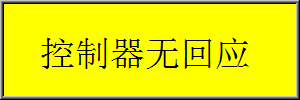
When the "Controller No Response" screen pops up as shown in the figure below, please check whether the communication cable is normal. If the communication is normal, the screen will disappear automatically after a few seconds.
7. Things to note
1). During the welding process, please do not change any parameters.
2). When the touch screen changes specifications, please wait two or three seconds before soldering.
3). Please keep the password of "User 3" properly.